Article from
Import + AI: Import Contacts Easily
Import contacts effortlessly – with no template required. Just upload your Excel file and MOCO uses AI to match the columns to the right fields.
Enable
Enable the AI feature for intelligent company and contact imports in Settings under Account > AI.
Import
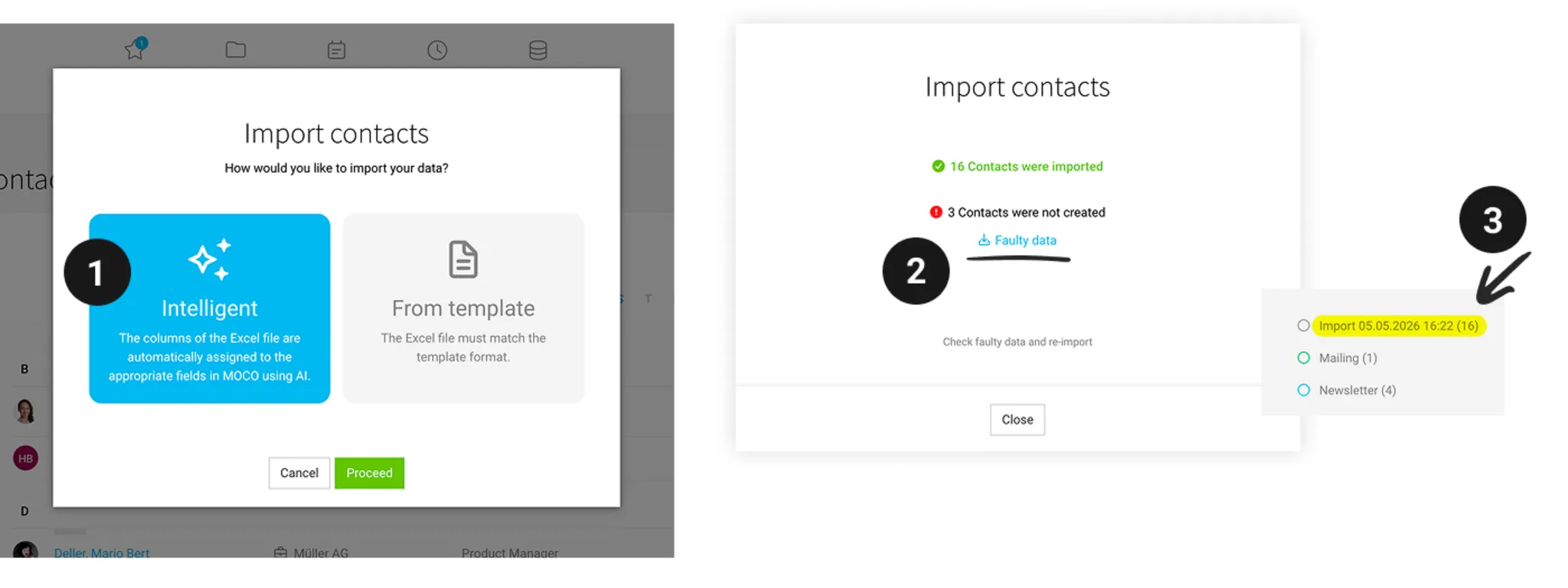
Under Contacts, click "Import" and choose the "Intelligent" option (1). Upload your XLSX file as it is. MOCO reads the column names and suggests the right fields. Check the mapping, then start the import.
Incorrect records
Records that could not be imported are provided in a separate XLSX file to download (2). Fix the errors, upload the file again, and you’re done.
Records that could not be imported are provided in a separate XLSX file to download (2). Fix the errors, upload the file again, and you’re done.
Review & Finish
Each import automatically gets a label (3), so you can see all newly imported contacts at a glance. If everything looks right, simply delete the label. If something is off, you can clean up incorrect entries using a bulk action.
AI in MOCO
All AI features are optional (opt-in). You decide whether and how you use them. During the beta phase, you can try the new features for free.