-------

MOCO + MCP
Access MOCO data via the Model Context Protocol.
With the Model Context Protocol (MCP), you can connect MOCO directly to your AI chatbot. This lets you query your MOCO company data easily via chat — and, if you want, trigger actions directly in MOCO.
The AI feature can be enabled in Settings under Account > AI (opt-in).
After that, the MCP server needs to be connected to MOCO. If your AI chatbot (Claude, ChatGPT, etc.) supports the Model Context Protocol (MCP) and OAuth, you can use the integration. Depending on the setup, connecting may require a paid account and admin rights.
You can find setup guides here:
After that, the MCP server needs to be connected to MOCO. If your AI chatbot (Claude, ChatGPT, etc.) supports the Model Context Protocol (MCP) and OAuth, you can use the integration. Depending on the setup, connecting may require a paid account and admin rights.
You can find setup guides here:
The quality of the answers depends not only on the data in MOCO, but also on the AI model you use.
 (English image not yet available)
(English image not yet available)Your Practical Helper for Day-to-Day Work
Use your AI chatbot to retrieve information from MOCO or understand how things relate:
- "What is this month’s revenue by client?"
- "Which projects are currently over budget?"
- "What is our team’s utilisation over the next four weeks?"
- "Which clients had the highest margin last quarter?"
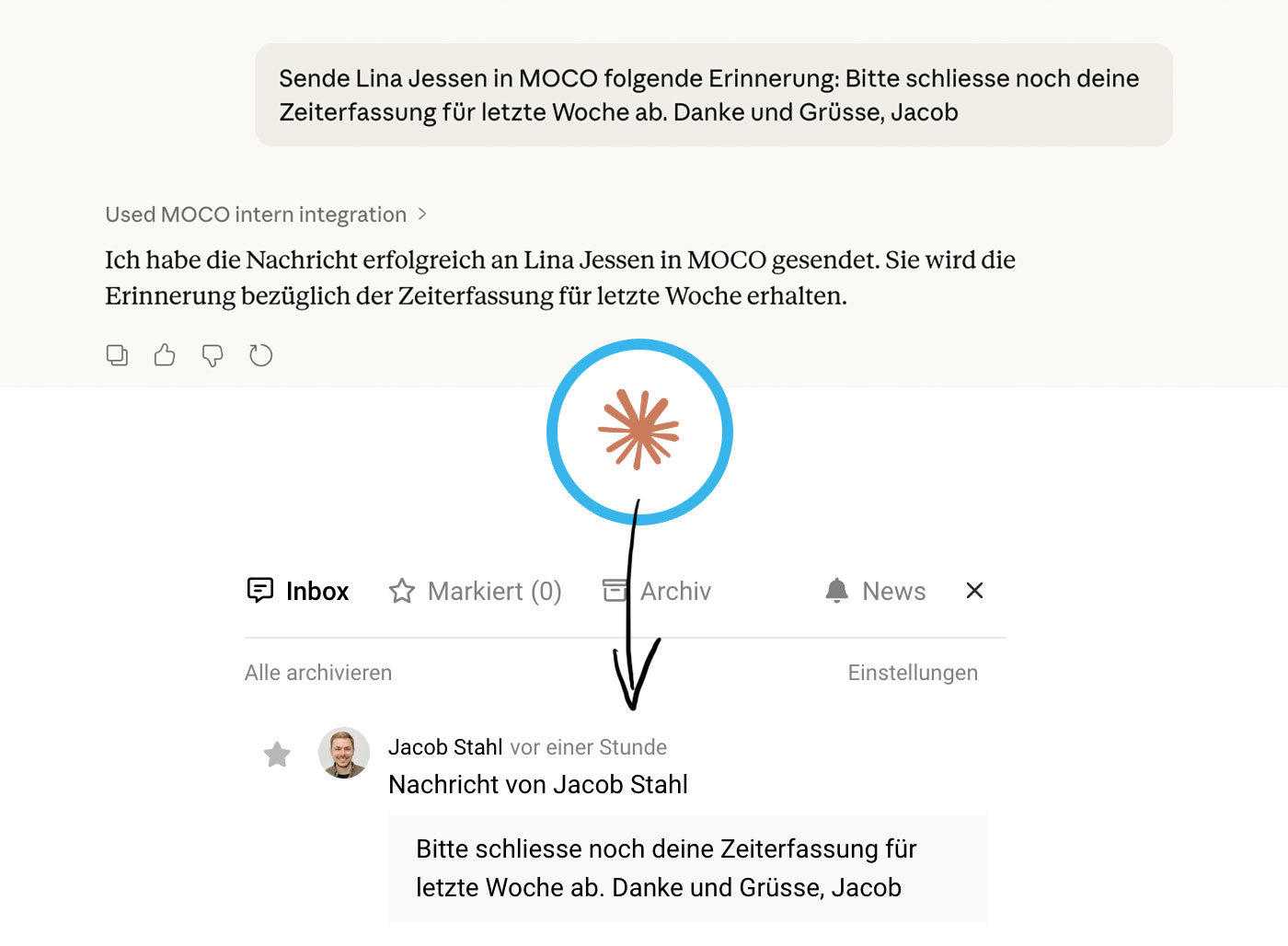
You can also have your chatbot actively take care of tasks in MOCO, for example:
- "Send a short reminder to everyone who didn’t log any time last week."
- "Create a new project for Client X: name, period, budget €25,000, category Consulting."
- "Create a new contact for Client Y with email address and phone number."
- "List all billable services for Client B this month."
As always: the AI can only see and do what your access rights and the settings in MOCO allow.
Available MCP Tools
The following commands are available via the MCP interface (limited by individual access rights):
Time Tracking
- find_activities – Retrieve your own project time
- find_global_activities – Retrieve project time for all users
- create_activity – Create a new time entry
- find_activity_suggestions – Retrieve suggestions
- find_presences – Retrieve working hours
- create_presence – Log working hours
- touch_presence – Start/stop working hours
Projects
- find_projects – Retrieve projects
- find_contracted_projects – Retrieve projects you are responsible for
- create_project – Create a new project
- update_project – Update a project
- project_profitability_report – Retrieve a profitability report for projects
Companies
- find_companies – Retrieve companies
- create_company – Create a new company
- update_company – Update a company
Invoices
- find_invoices – Retrieve invoices
People
- list_users – Retrieve all people
- find_my_employments – Retrieve your weekly working pattern
- find_user_employments – Retrieve the weekly working pattern for all people
To-Dos
- find_todos – Retrieve your own to-dos
- create_todo – Create a new to-do
Other
- create_user_notification – Send a notification to person/people